TABLE OF CONTENTS
STEP 1
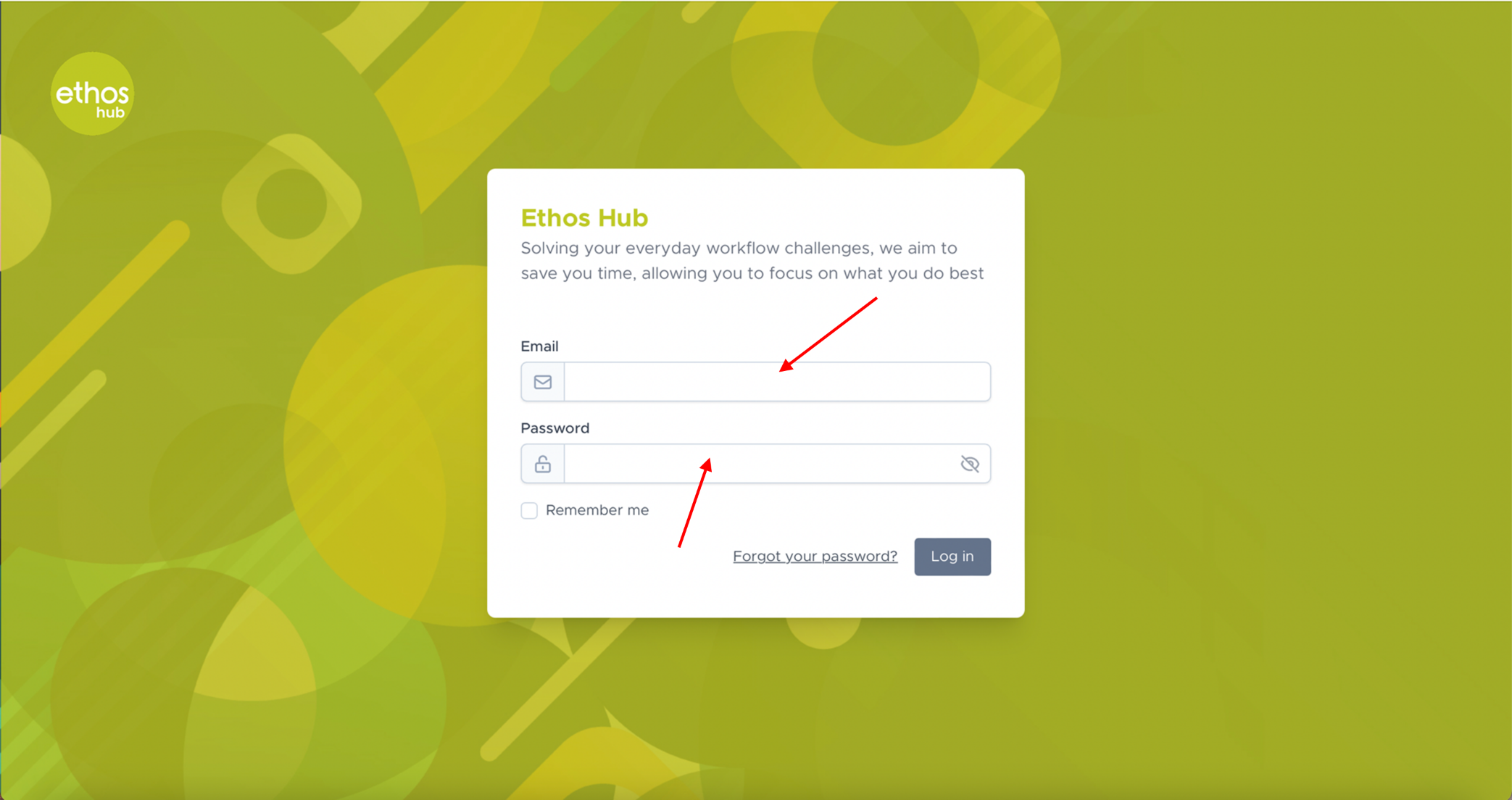 Enter your login email and password.
STEP 2
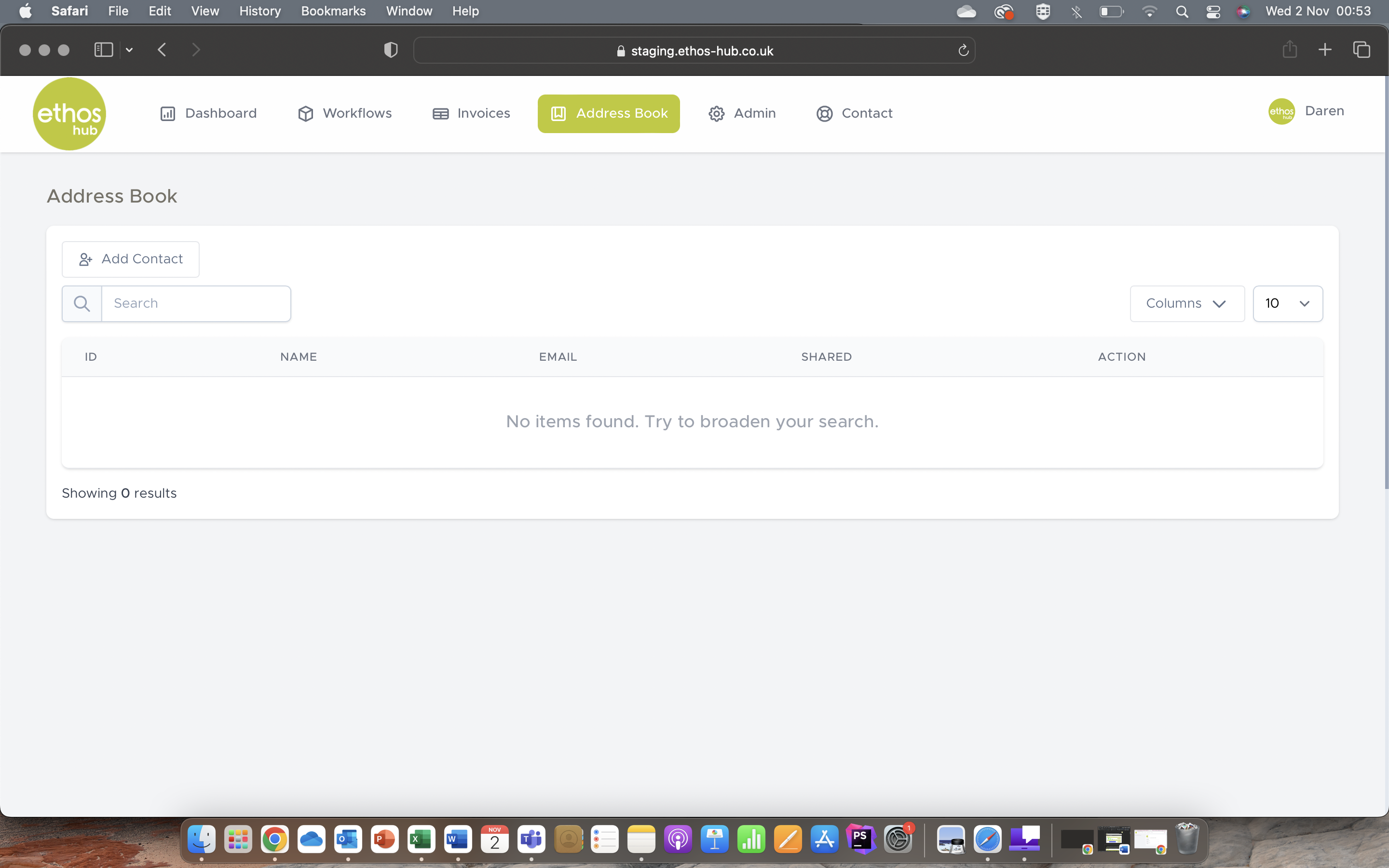
Once you are logged in, please select the address book icon in the top taskbar as shown below.

You will now be presented with the following page:
ADDRESS BOOK
The Address Book allows you to manage your contacts that are available when selecting your recipients for your workflows.
CREATE A NEW CONTACT
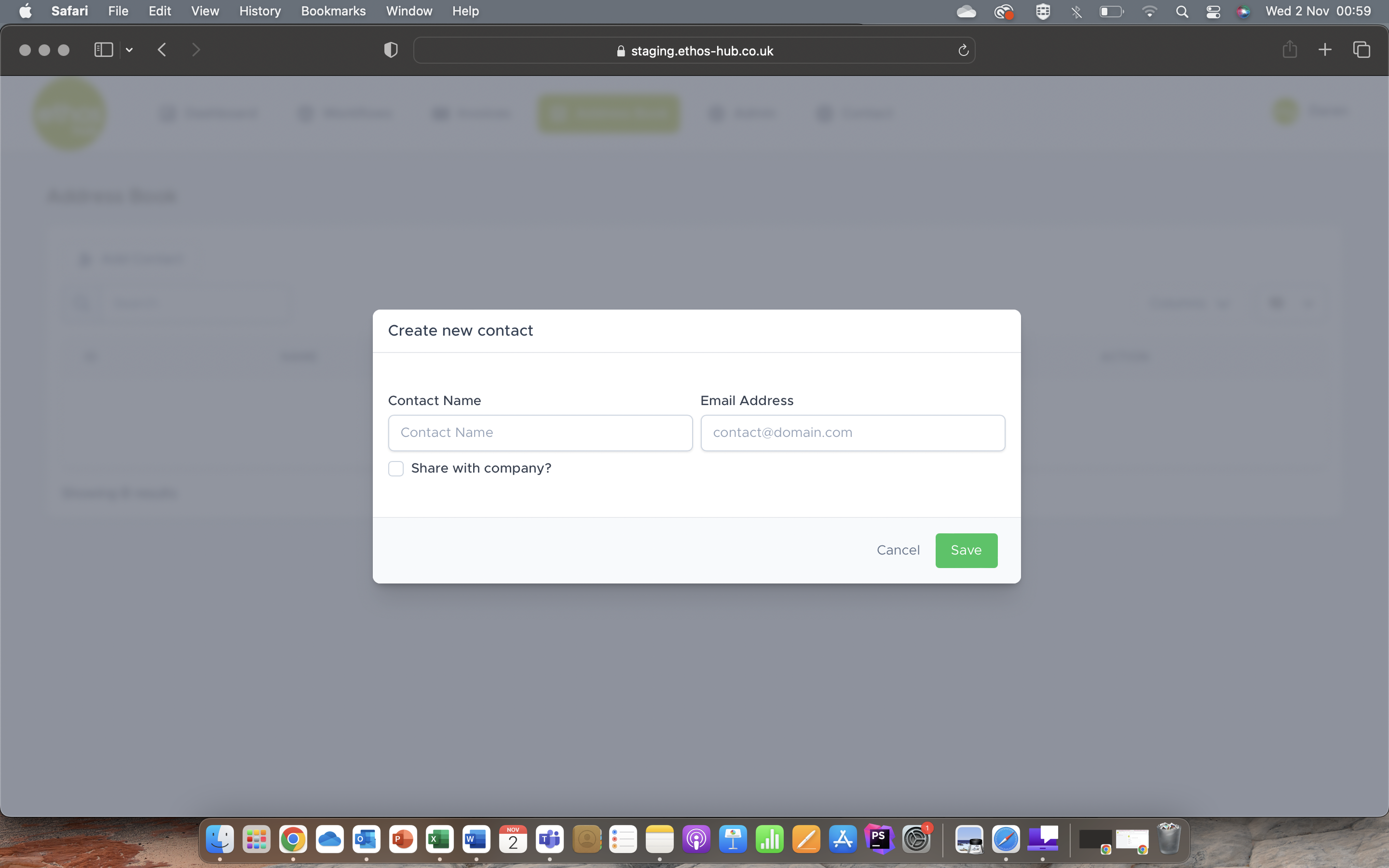
If you click on the add contact option, you will be presented with the following form which allows you to create a new contact.
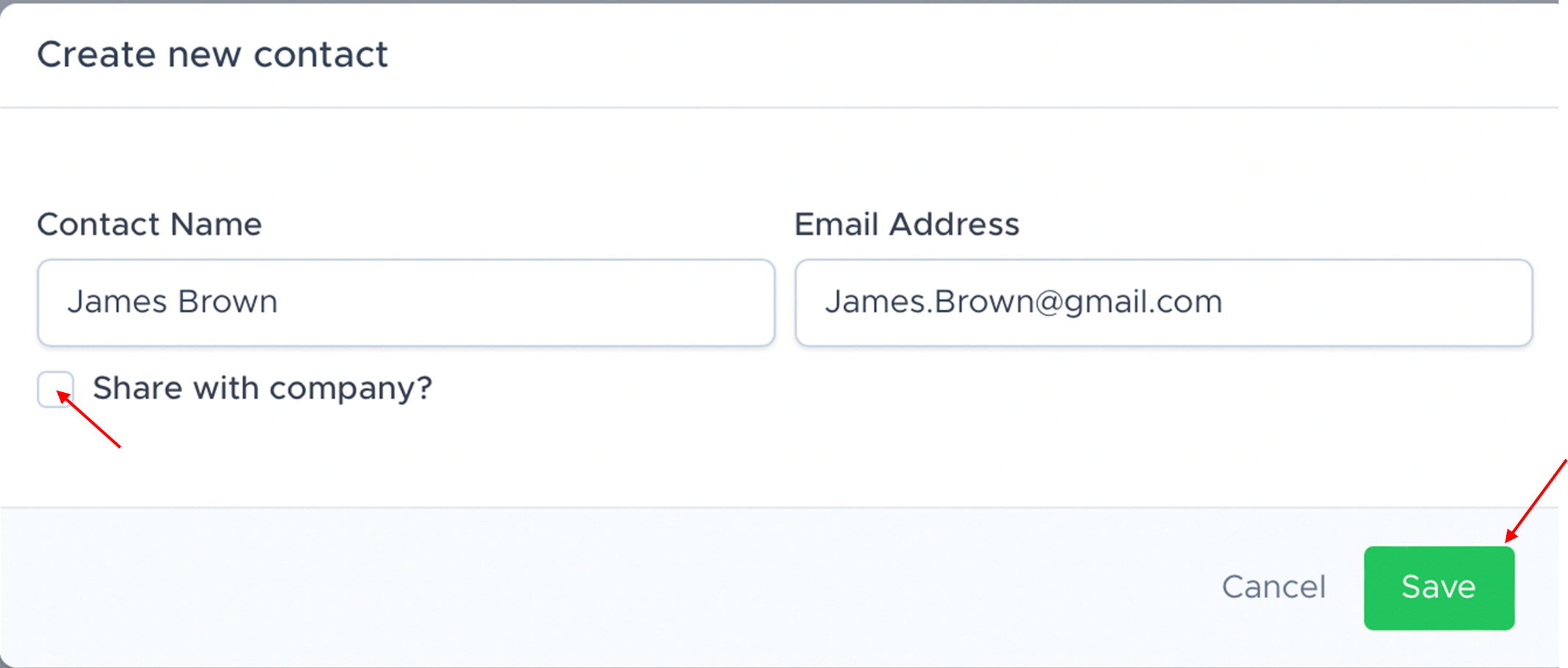
 Once you have entered your contact’s name and email address, you also have the option to share this information with the company, select the “share with company?” field. Once you are happy with the information click on the save button.
You will now receive a pop-up message to inform you that your contact has been created successfully.
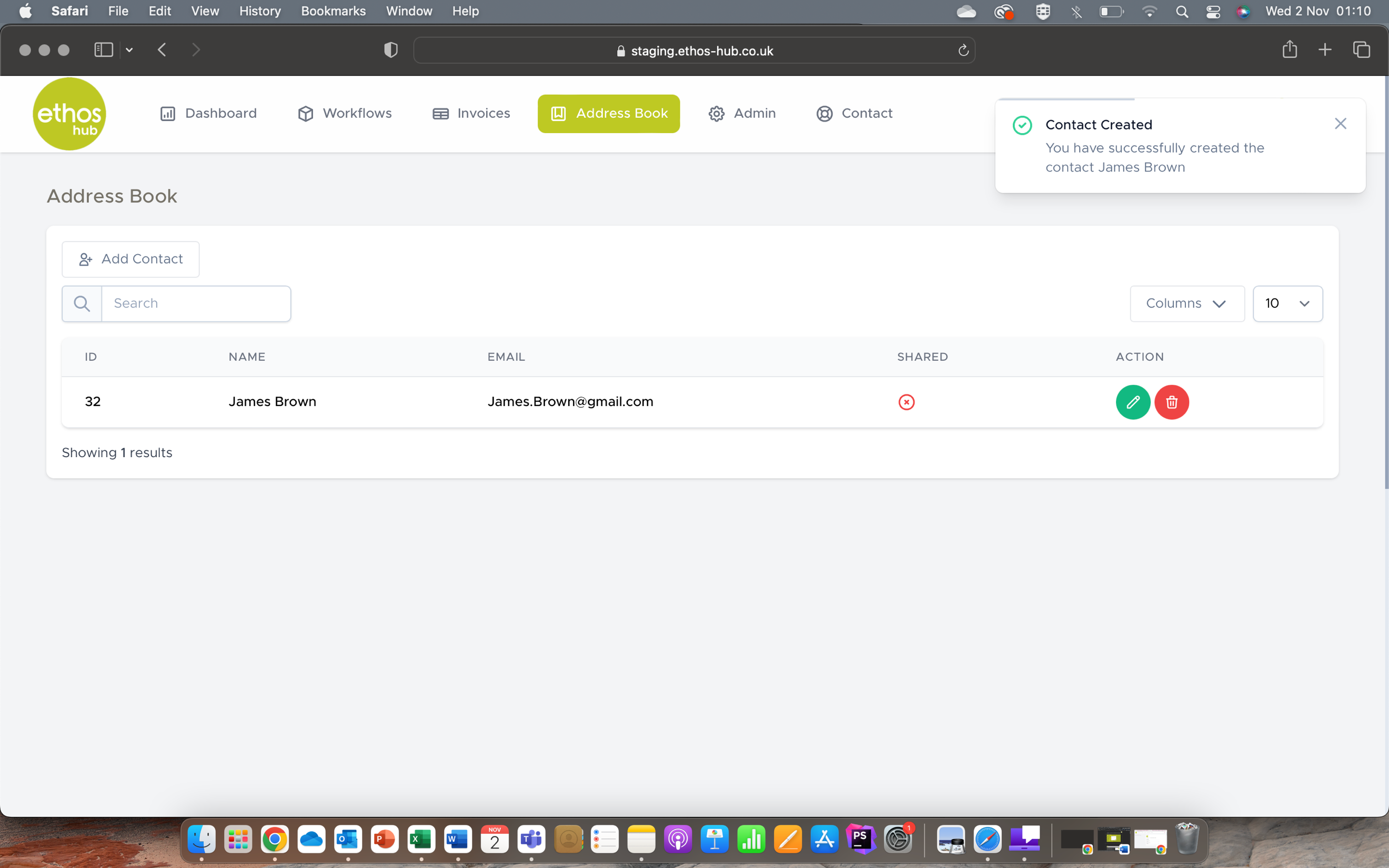
Your contact will now appear in your address book. You also have the option to edit or delete your contacts.
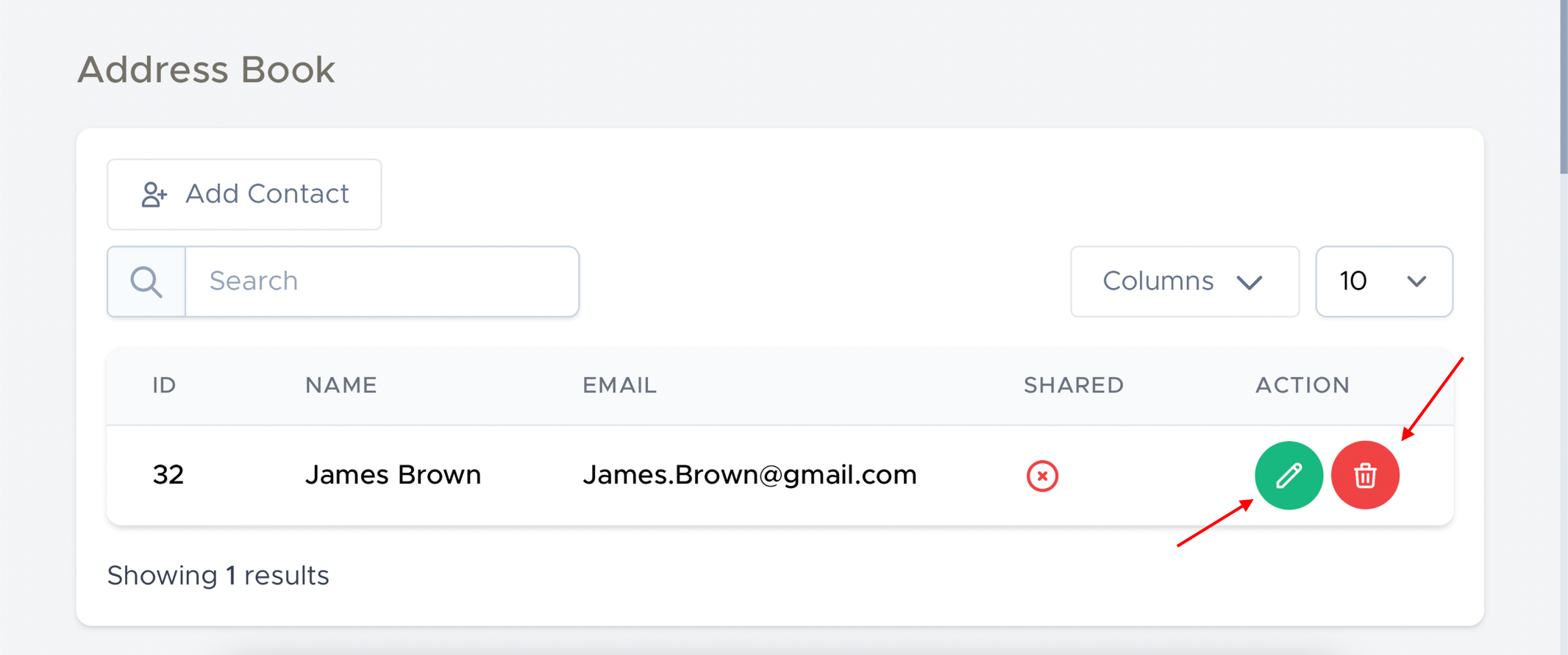
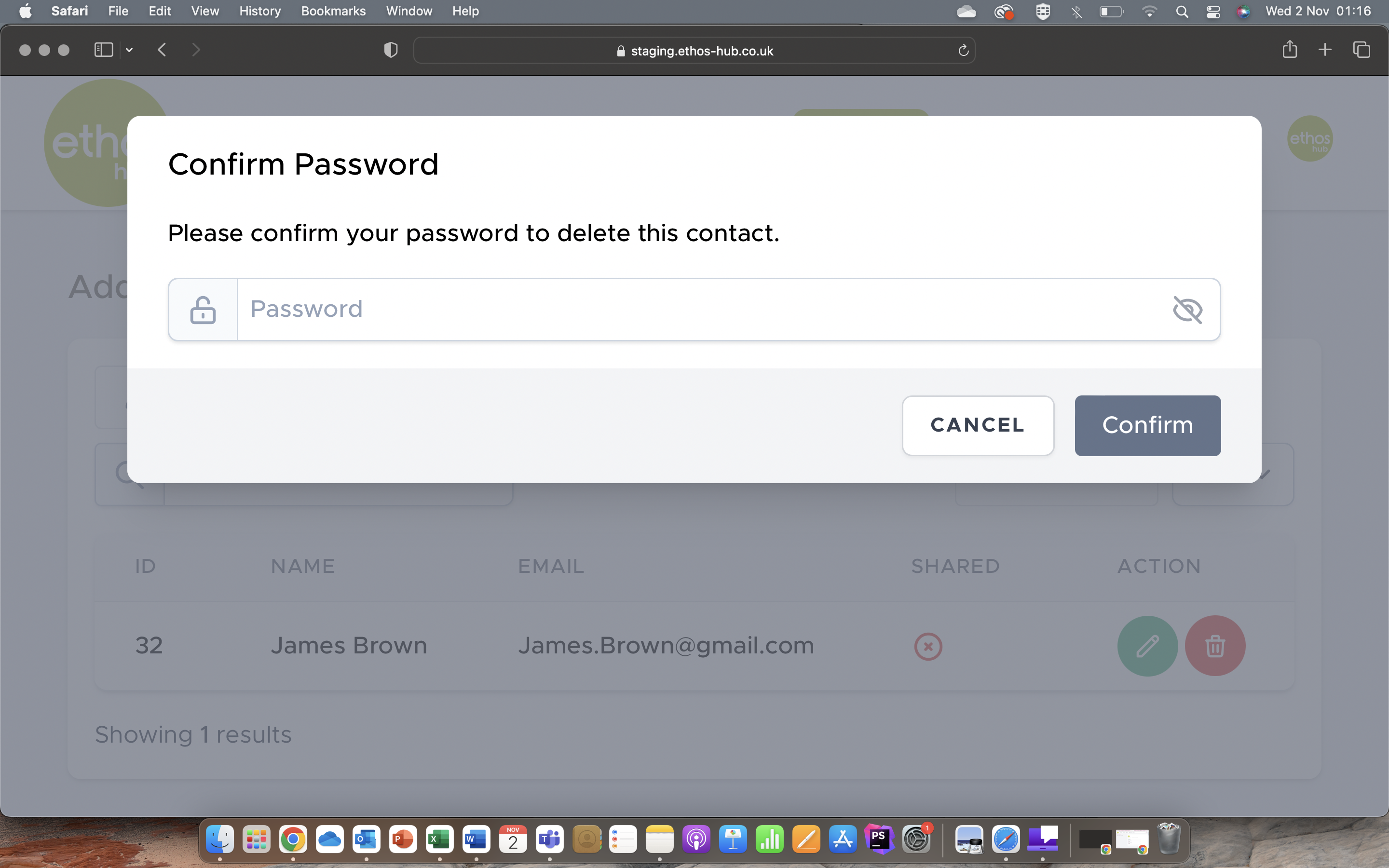
DELETING A CONTACT
If you choose to delete a contact, you will be prompted with a window that requires you to confirm your password.
SEARCH BAR
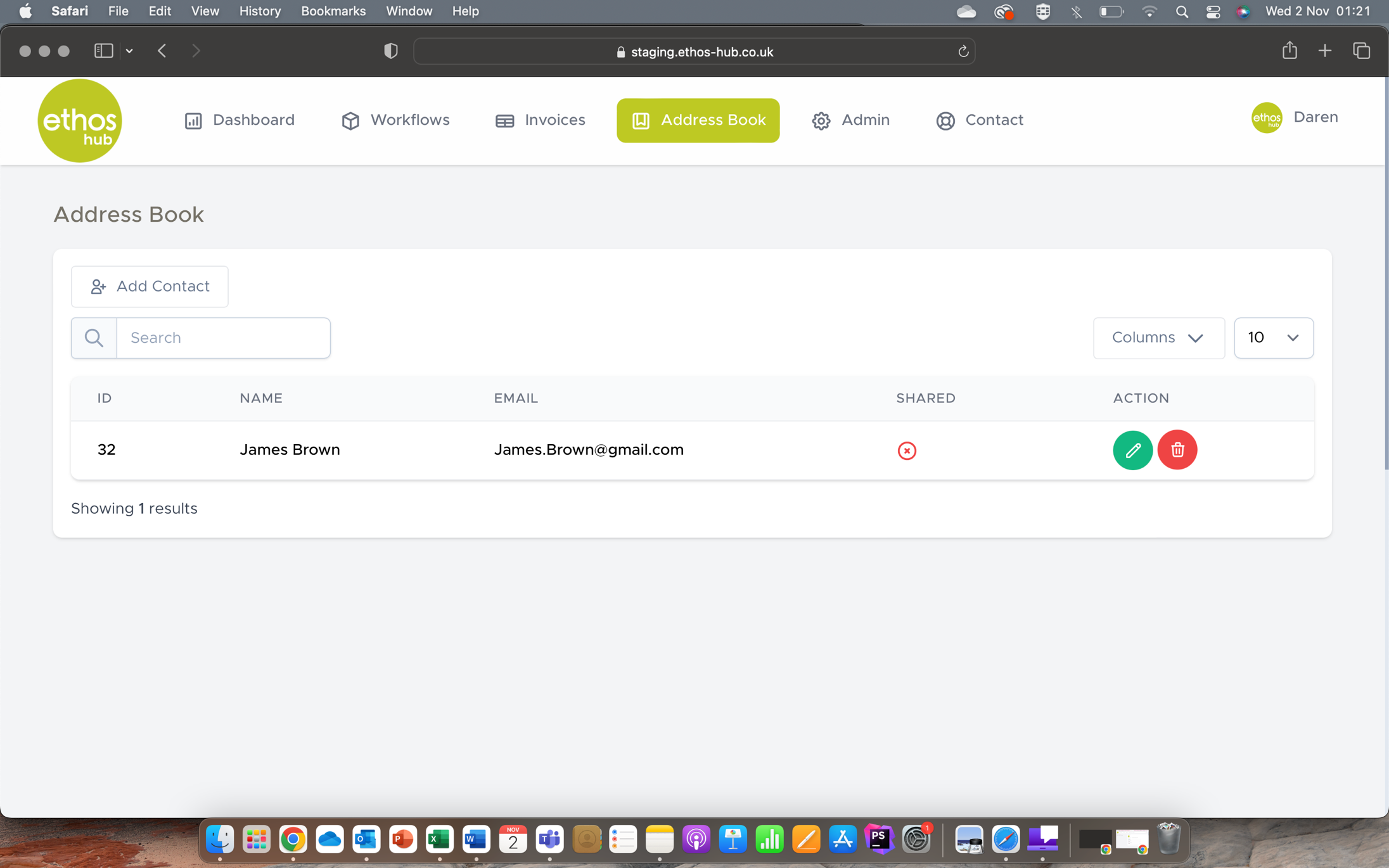
The search bar will allow you to search your contacts.
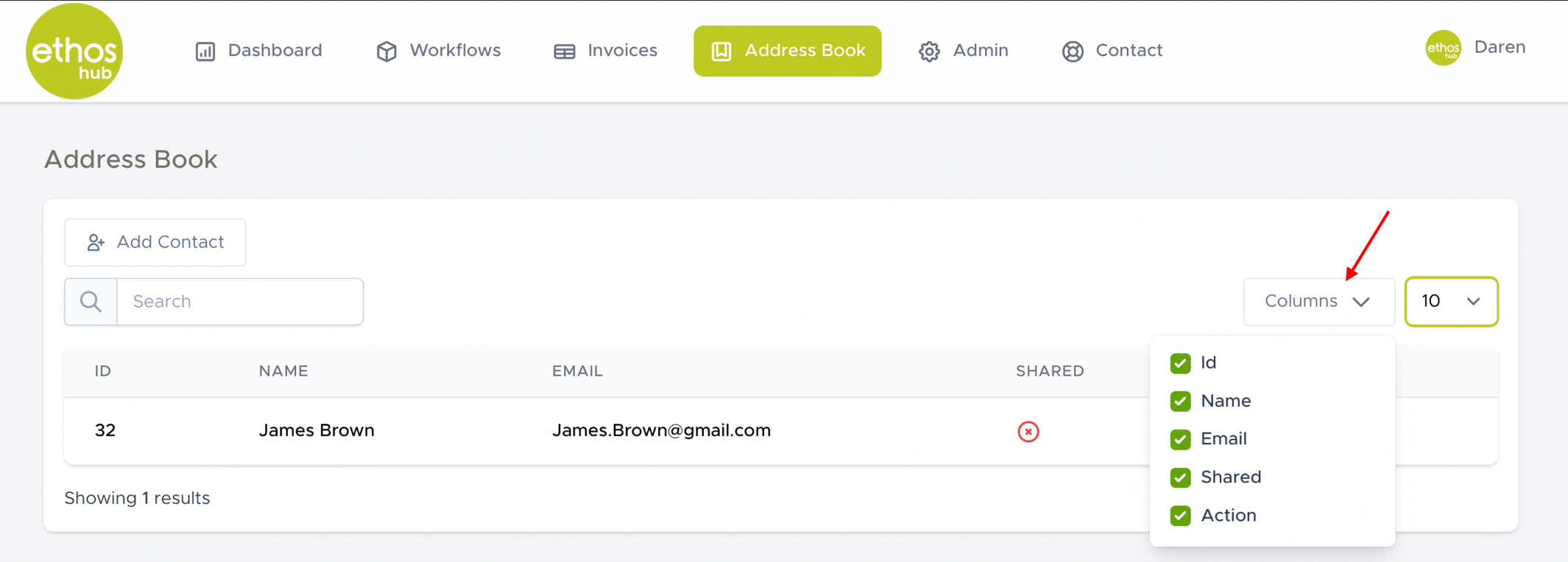
COLUMNS
The columns option allows you to choose what columns you would like to display in your address book.
Was this article helpful?
That’s Great!
Thank you for your feedback
Sorry! We couldn't be helpful
Thank you for your feedback
Feedback sent
We appreciate your effort and will try to fix the article