TABLE OF CONTENTS
- STEP 2
- Updating Your Profile
- UPDATING YOUR PASSWORD
- TWO FACTOR AUTHENTICATION
- BROWSER SESSIONS
- DELETING YOUR ACCOUNT
STEP 1
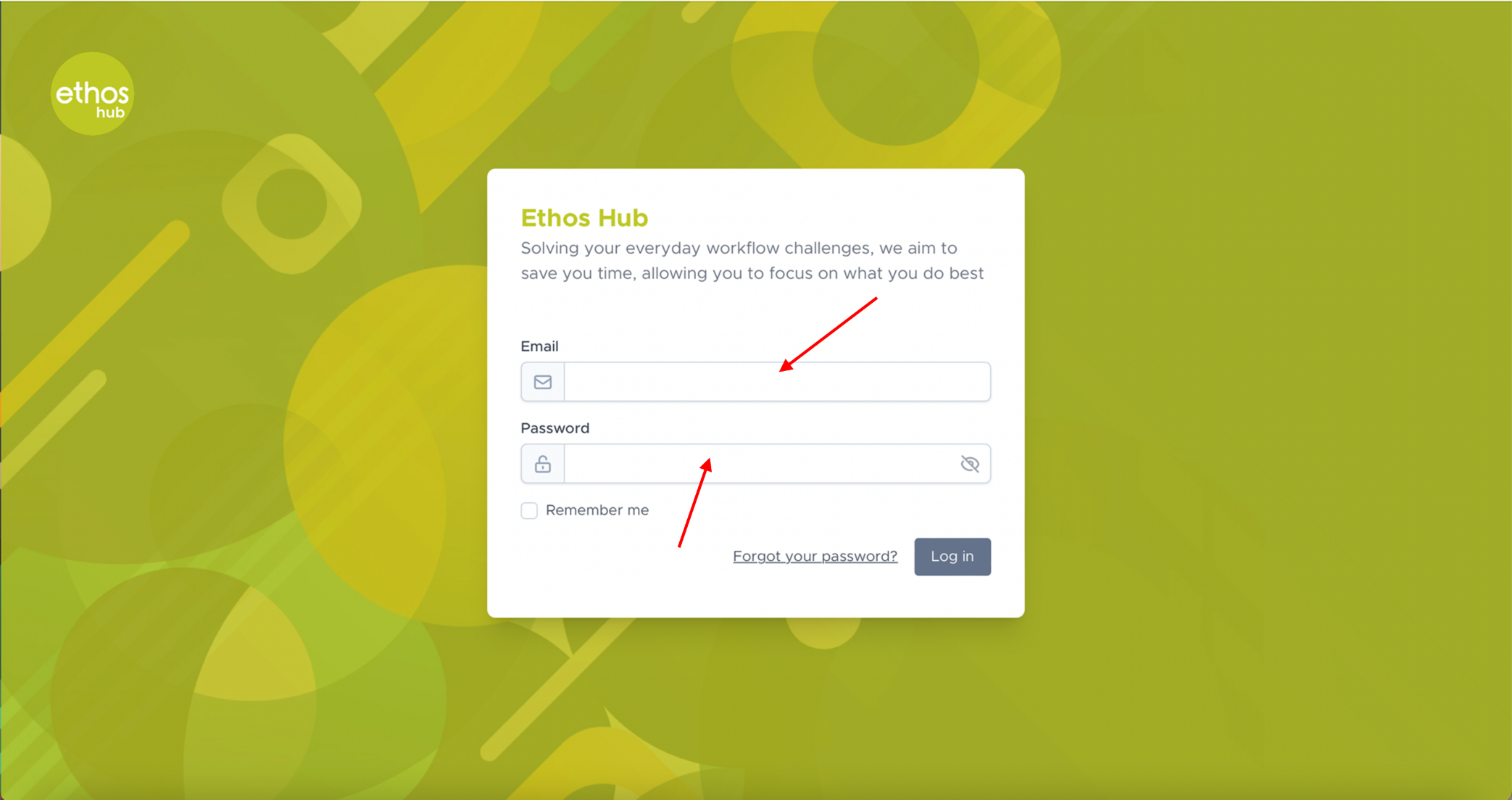 Enter your login email and password.
STEP 2
Once you are logged in, please click on the display picture in the right-hand of the top taskbar that will also have your display name next to it as shown below.
Note: If you do not choose to upload an image of your own, your display photo will look different depending on your display name. For example, if your display name reads ‘Daren’. Your display photo will be the initial of your first name i.e., ‘D’ followed by the name, ‘Daren’.
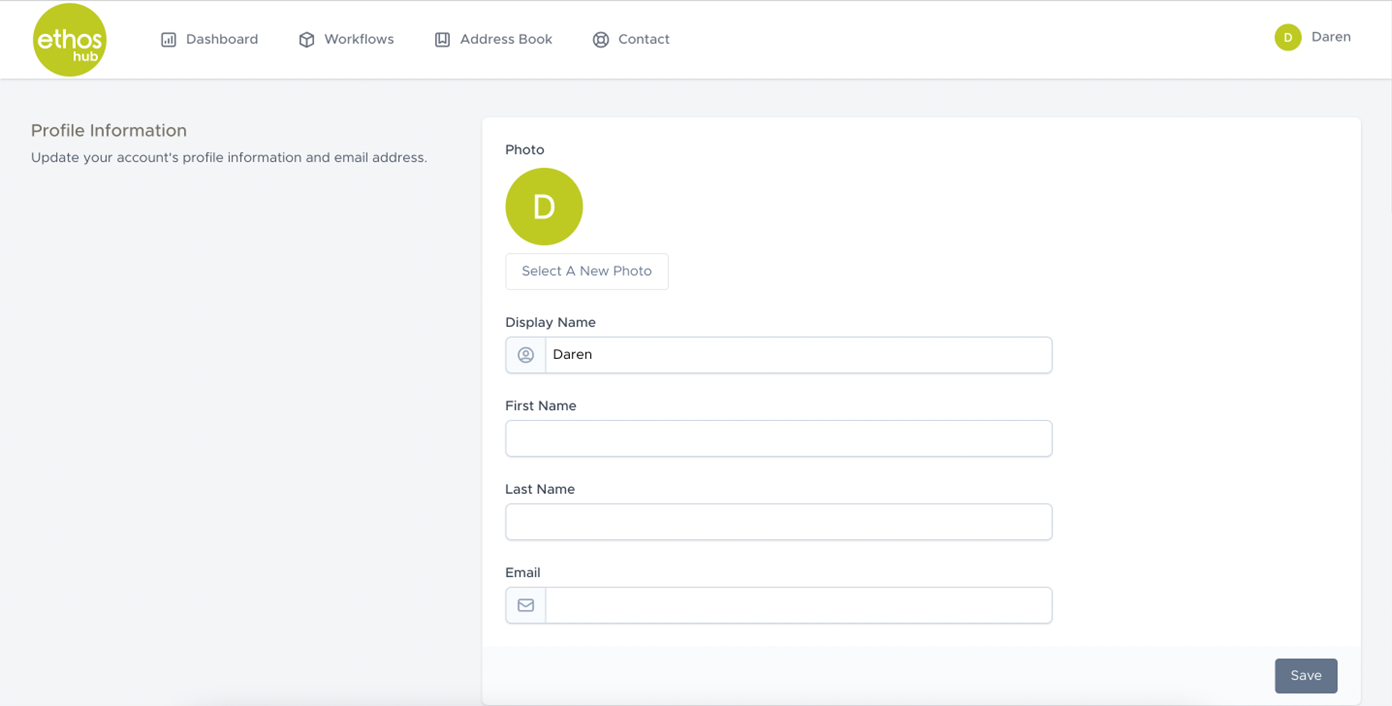
Click on the drop-down menu a select profile. You will now be presented with the profile information screen shown in the screenshot below.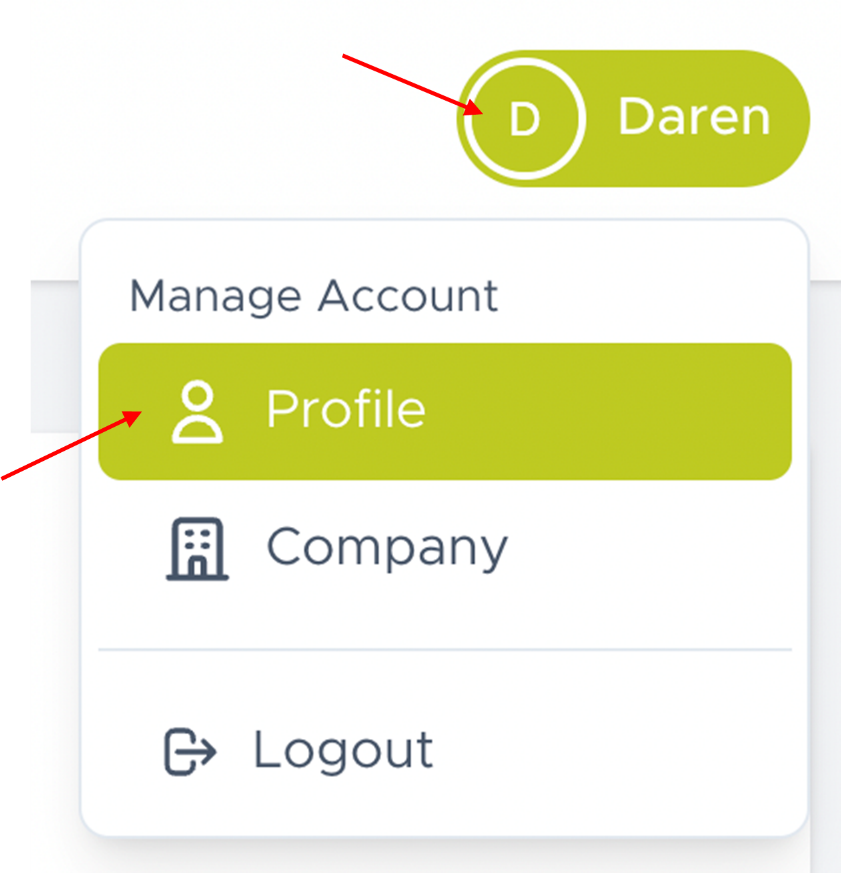
Updating Your Profile
In the profile information section, you can update the profile information and display photo for your account.
CHANGING YOUR DISPLAY PHOTO
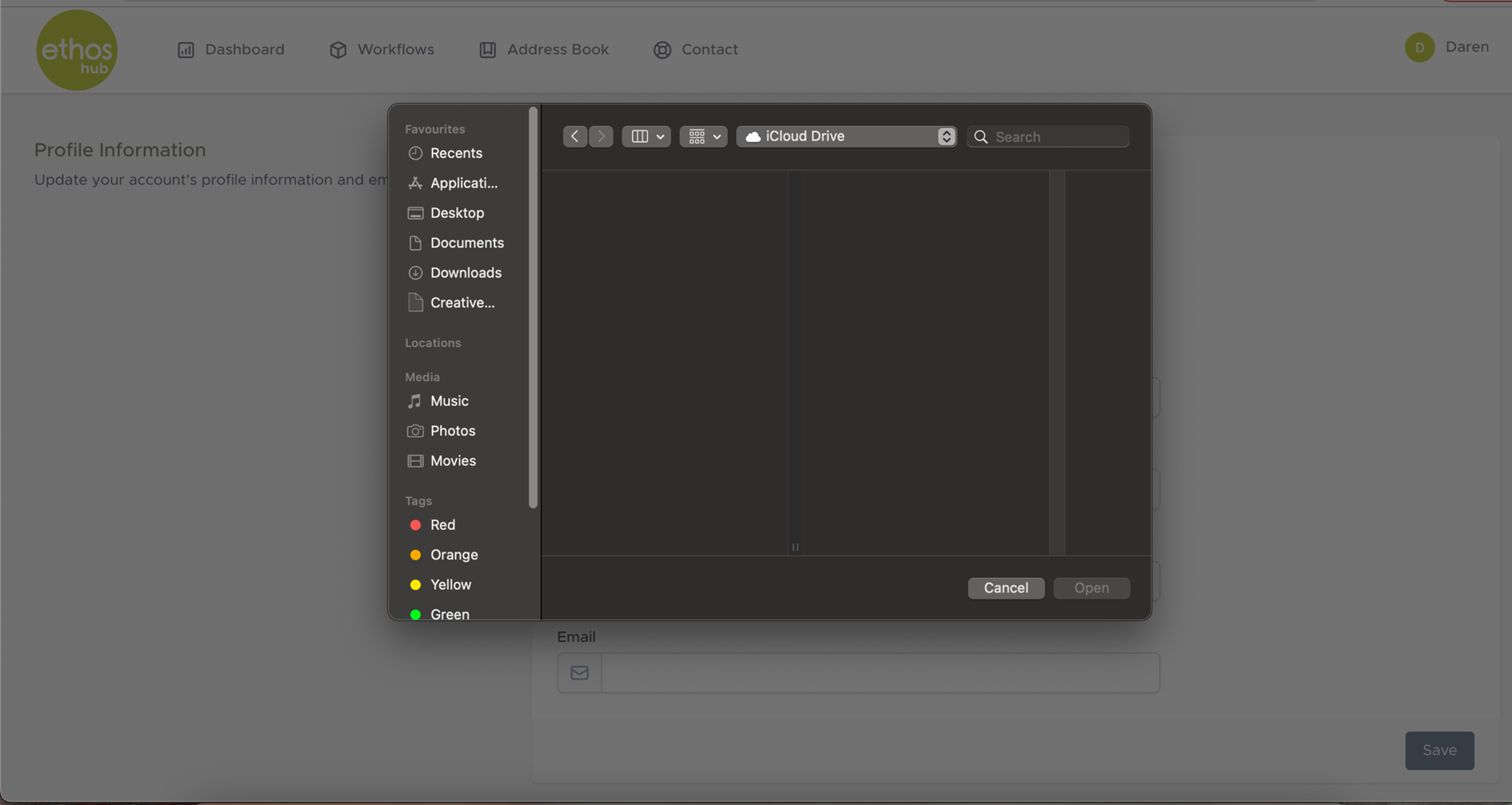
You can change your display photo by simply clicking on the button that reads “select a new photo”.
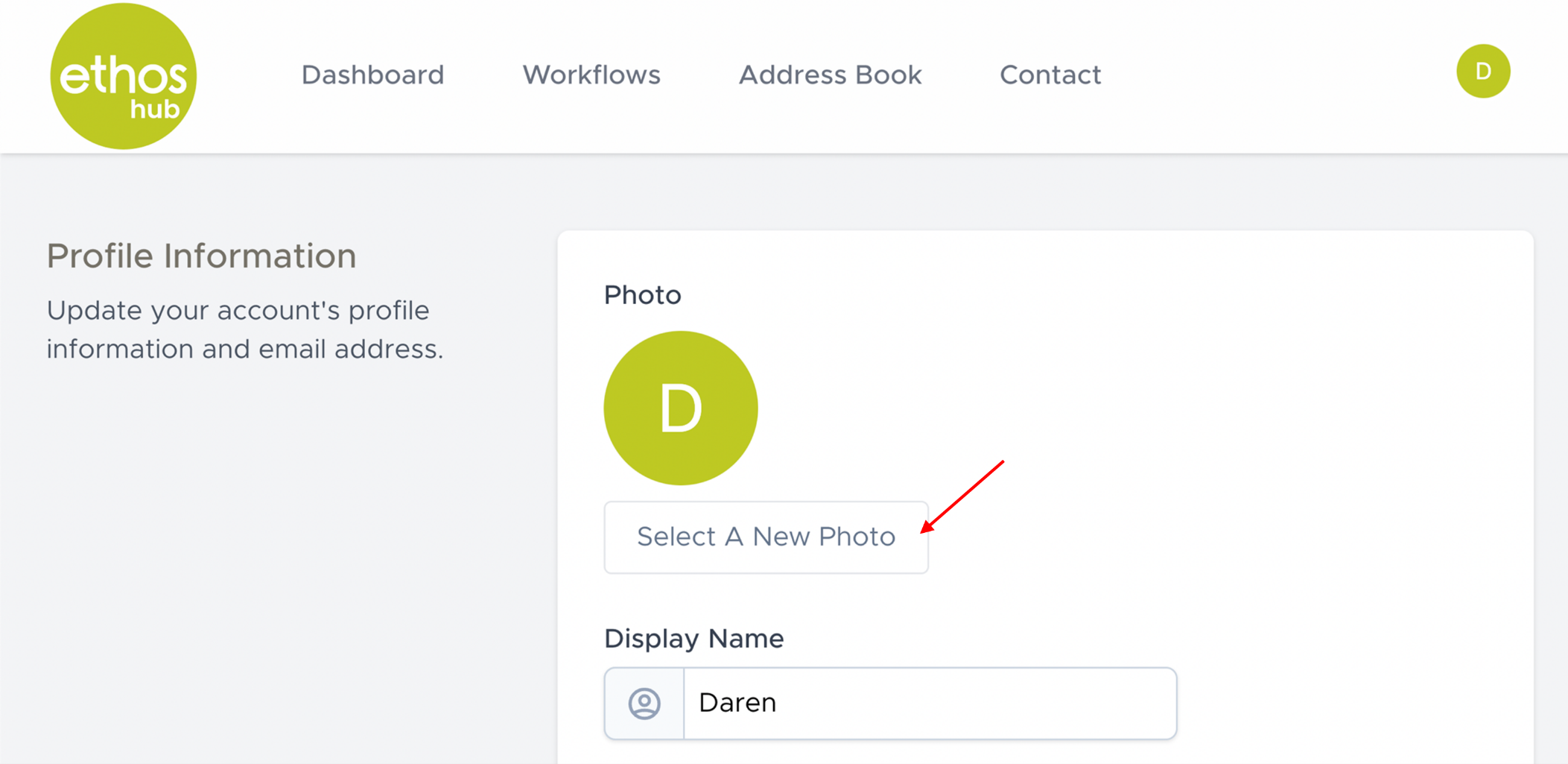
You will now be prompted with the following screen. Here you can upload an image as you desire.
UPDATING YOUR PROFILE INFORMATION
Updating your profile information has been made very simple. Update required fields by entering your information as shown below.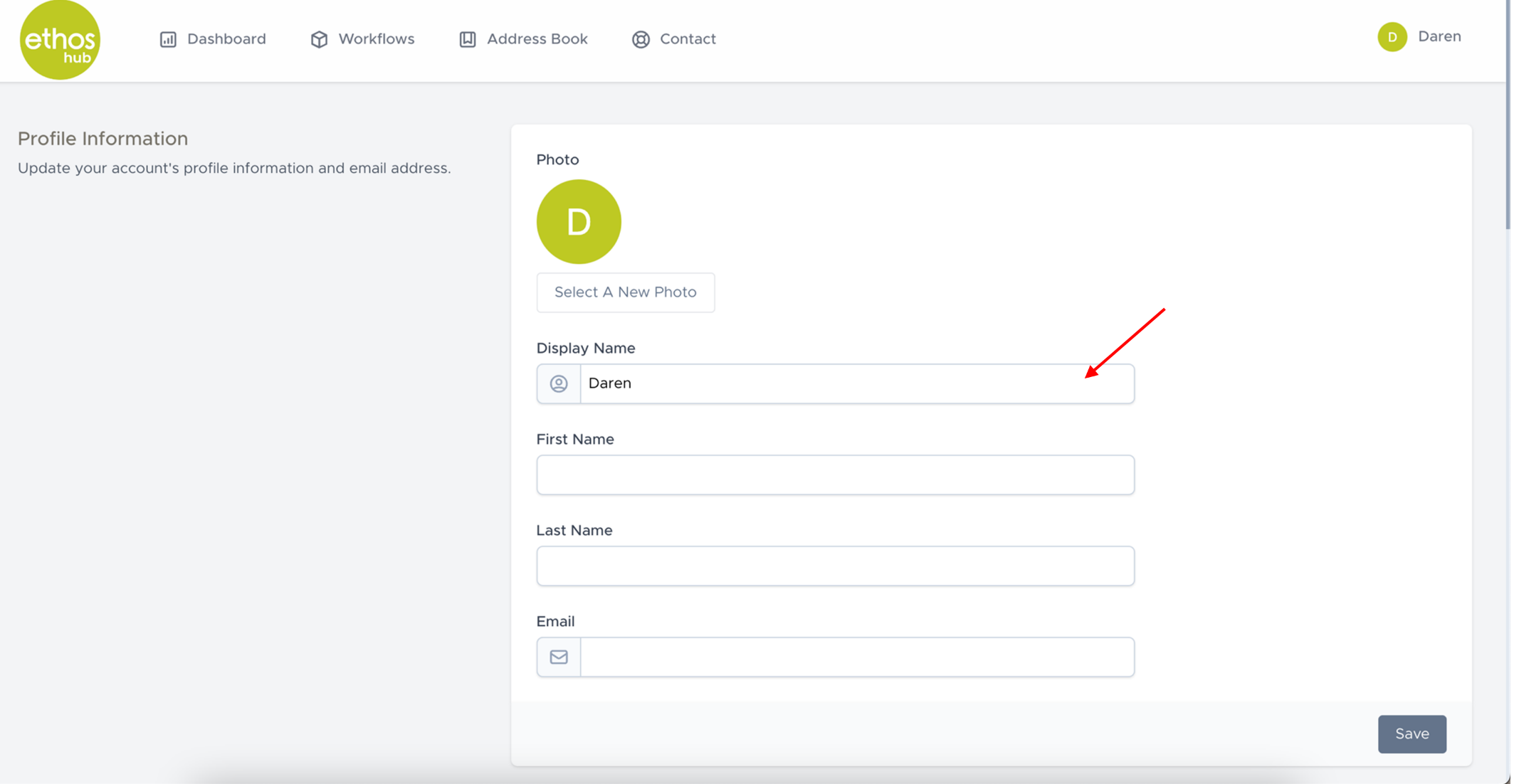
Once you have updated the fields that you require, please click on the save button.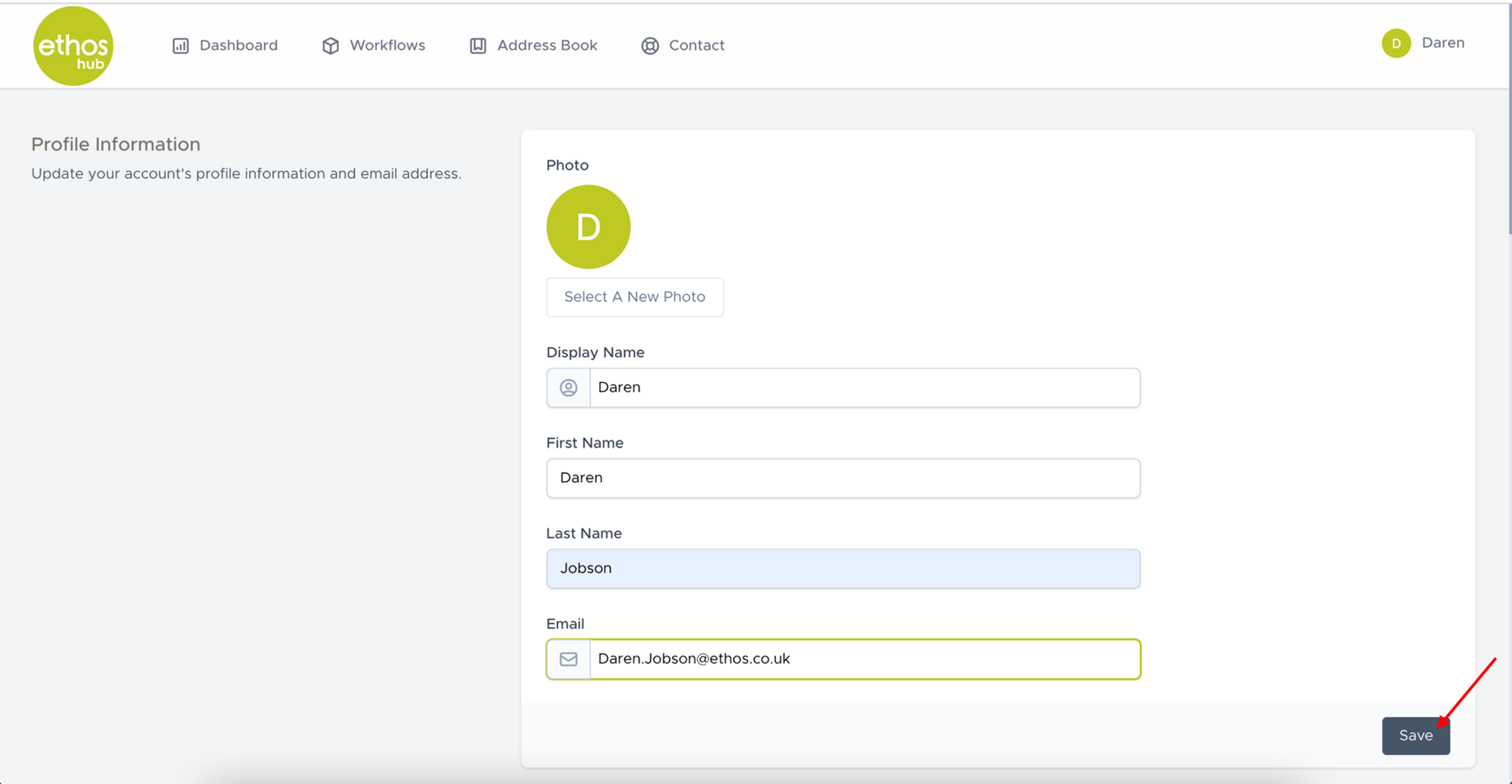
UPDATING YOUR PASSWORD
In this section you can update your password. Simply 1: Enter your current password, 2: Enter your new password, 3: Confirm your password.
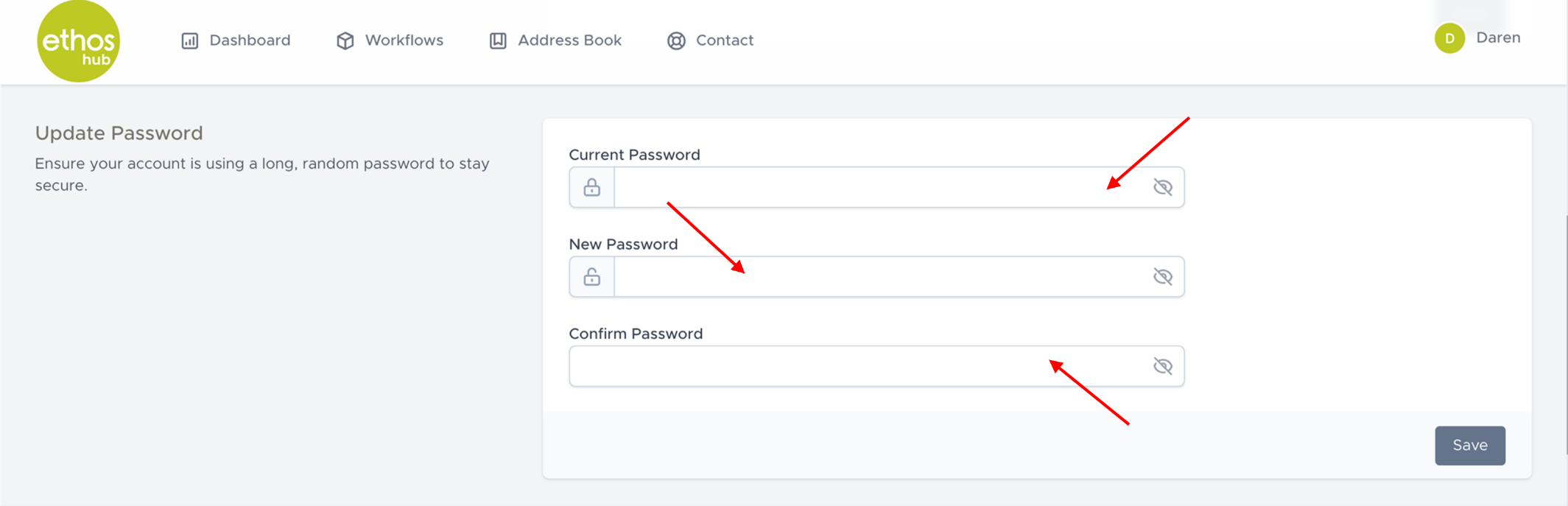
Once you have updated all the fields click on the save button.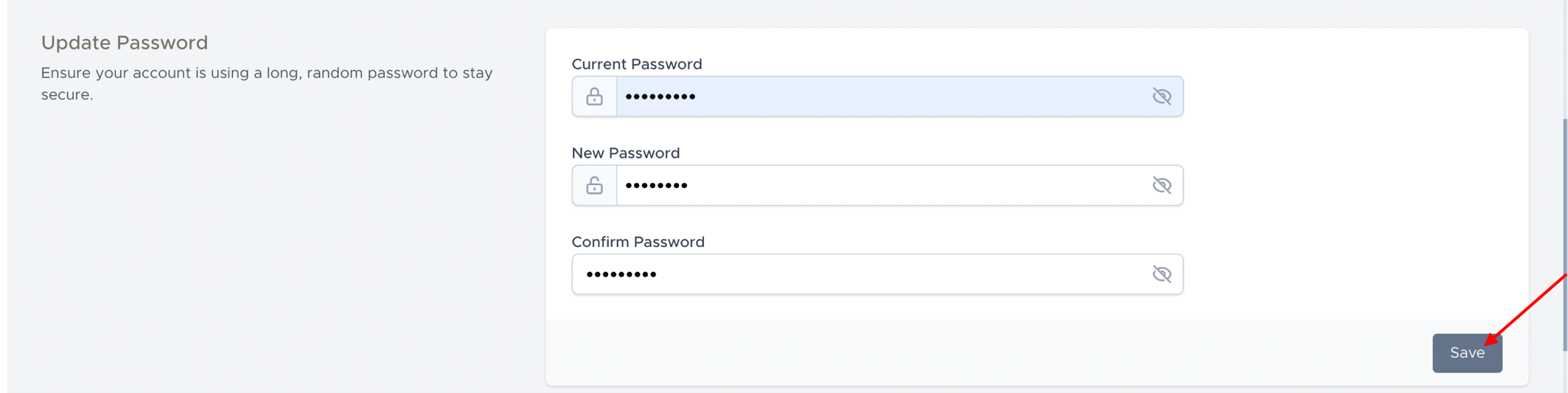
TWO FACTOR AUTHENTICATION
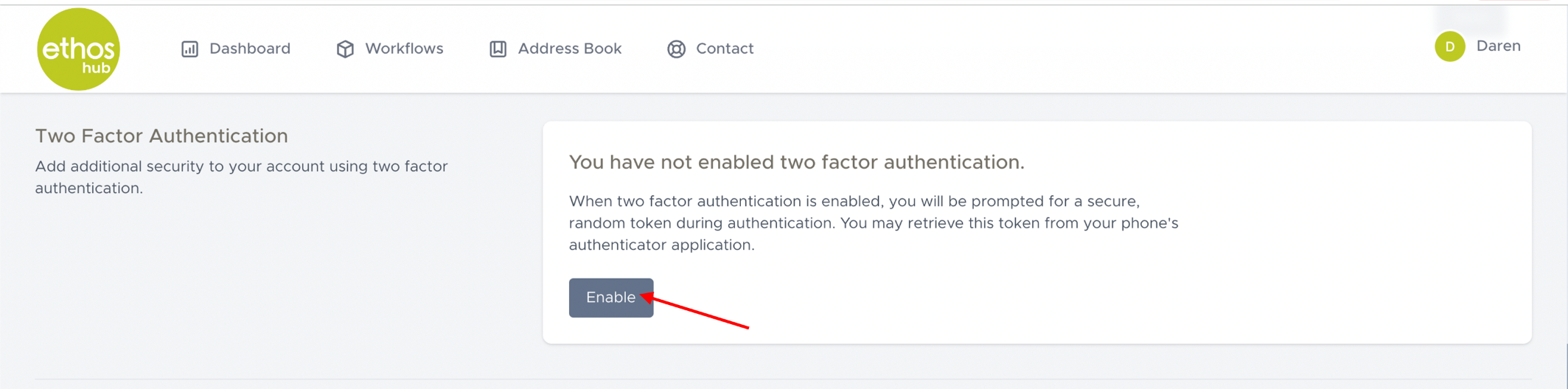 In this section you can enable Two-factor authentication. Click on the enable button and follow the instructions to setup and verify your 2FA/MFA application.
BROWSER SESSIONS
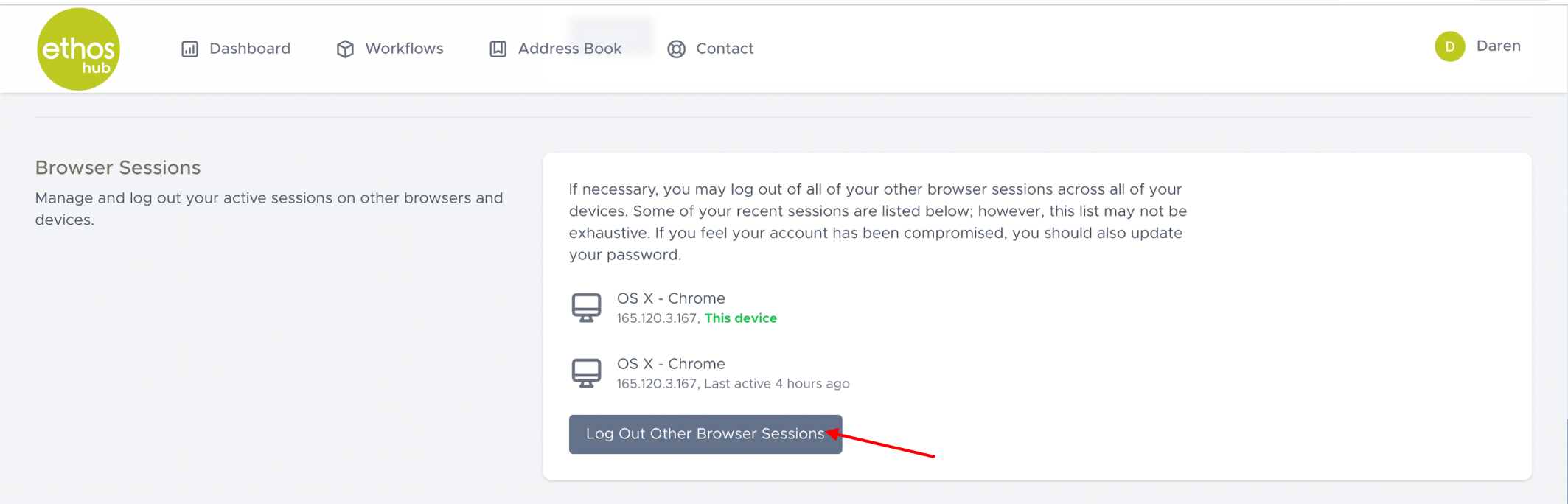
In this section you easily can manage and log out of your active sessions on other browsers and devices click on the “log out other browser sessions” button.
DELETING YOUR ACCOUNT
If you decide to that you want to delete your account, this is made easy simply click on the “delete account” button.

Was this article helpful?
That’s Great!
Thank you for your feedback
Sorry! We couldn't be helpful
Thank you for your feedback
Feedback sent
We appreciate your effort and will try to fix the article